Quickstart (5 minutes)
This walkthrough takes you from a new account to an AI-generated Word document, grounded in your own file.
1. Register
Open hipmmai.com, click Register, enter email + password. You're in. See Register & sign in.
2. Create a project
Projects are how your work is organized — each project has its own private knowledge base.
- In the sidebar, switch to the Knowledge base tab and click New project.
- Give it a name (e.g. Sales), optionally a description and AI instruction, then click Create.
3. Upload a document
- Open the project you just created and go to its Knowledge base tab.
- Click "Upload your first document" or drag in a file (PDF, Word, Excel, PowerPoint, Markdown, txt, …).
- Wait for its status to reach completed — the platform is chunking, embedding, and indexing it. This uses the platform's default retrieval models; nothing to configure.
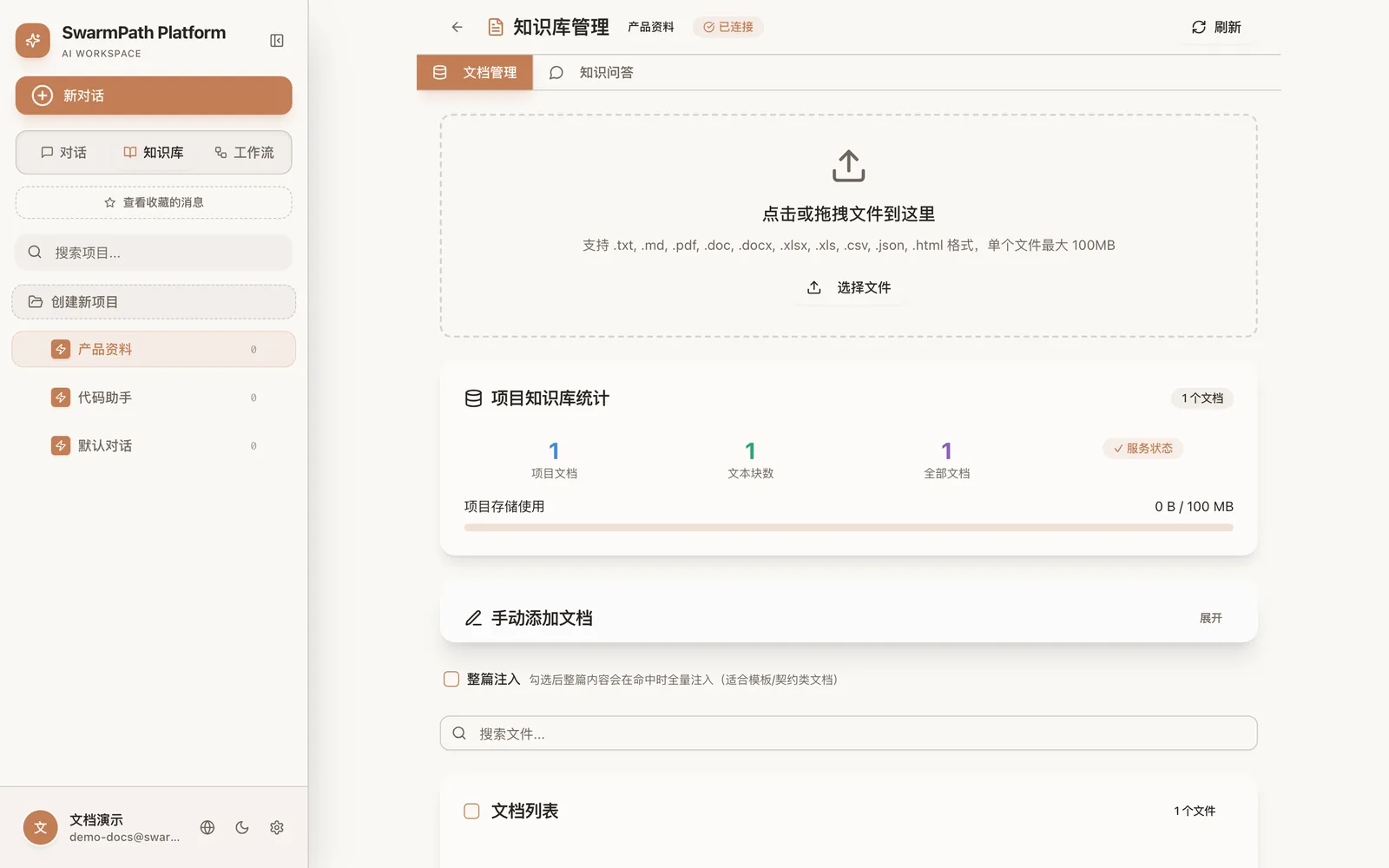 Drop a file into the upload area; document and chunk counts update below
4. Ask a grounded question
- From inside this project page, click + New chat at the top — only a chat started this way is bound to the project's knowledge base.
- Ask something answerable from your document, e.g. "What were the top three risks mentioned?"
- The answer is grounded in your uploaded file, with the relevant passages retrieved automatically.
Note: a chat started from Chats → New chat in the sidebar isn't tied to a project and won't search the knowledge base. To use your documents, always start the chat from inside the project.
5. Turn on Agent mode and get a file
- Just above the input box, click the 🤖 智能体 (Agent) chip — when active it turns orange and reads 🤖 智能体 · 已开启 (Agent · On).
- Ask for a deliverable, e.g. "Write a one-page summary of this document as a Word file."
- The agent runs multiple steps and returns a downloadable
.docx— not just text.
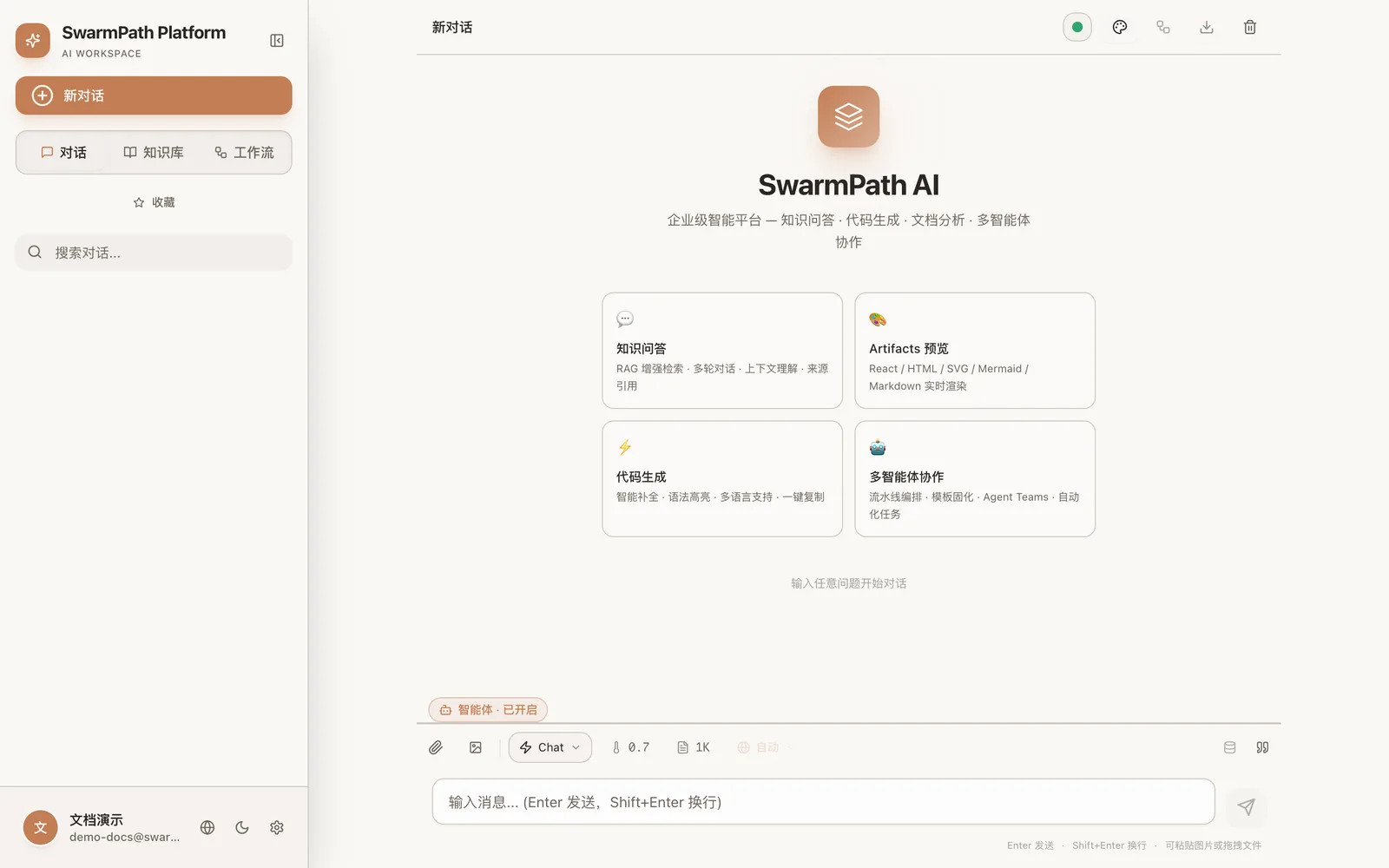 Once lit, the orange chip = Agent mode on
TIP
Agent mode is per-conversation. Toggling it on affects this chat; click it again to turn it off, or start a new chat to go back to plain chat.
Where to go next
- Model channels — use your own provider / API key for chat.
- Knowledge base — formats, whole-document injection, testing retrieval.
- Agent mode — what it can generate and how it works.
- yongzhi-im — do all of this from the yongzhi-im app.